
Blog Analytics: How To Use Google Analytics (For Bloggers) Complete9inja




What can Google Analytics do?
The short answer is – A LOT.
You can track
- Real data (see who’s on your site – LIVE)
- Number of visits per hour/day/month
- Demographics
- Countries
- Referrals, resources
- and much more…
You can even compare their time spent on your blog and pages. What’s more, it’s completely free for everyone to use. Gotta love Google…
However, setting it all up can be a bit difficult for a beginner – that’s the reason I’ve put together this tutorial.
How do I add Google Analytics to my WordPress blog?
There are two ways to do this. One way is to get a plugin and place the Analytics code there, another way is to place the tracking code manually.
Either way, you’ll first need to sign up with them and do some configurations.
There are three steps to installing Google Analytics on your blog:
- Sign up for Google Analytics
- Copy the tracking ID for your account
- Install the code on your WordPress Blog With A Plugin
Let’s walk through each step in more detail.
Signing up with Google Analytics
1 – Go to www.google.com/analytics
Log in with your Gmail account. If you don’t have one – create it (it takes 5 minutes).
Click on the “Admin” link in the top menu and fill in the information about your blog.
- Account name: Can be anything
- Website name: Your blog name
- Website address: Your blog URL/address
- Industry/category: Should be relevant to your blog topic
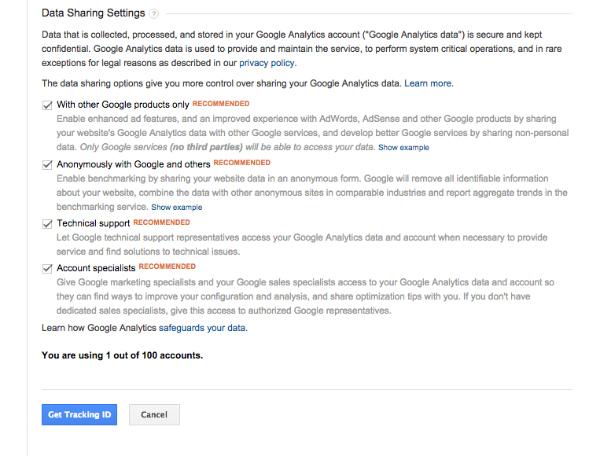
Make sure you also tick the recommended options to get the Tracking ID.
2. Next, save your Google Analytics ID. It should be some thing like: UA-8347271.
Install Google Analytics plugin to your WordPress blog
If you don’t want to manually insert your Google Analytics tracking code inside your WordPress blog template, there’s an easier way.
All you need to do is install a plugin named – Google Analytics for WordPress.
Once you’ve installed and activated it, go to “Settings” -> “Google Analytics” and just enter your Tracking ID:
The fun part – start checking your visitor statistics
In the first 24 hours you won’t see much. Google Analytics can take a while when it fully starts to work, so don’t worry.
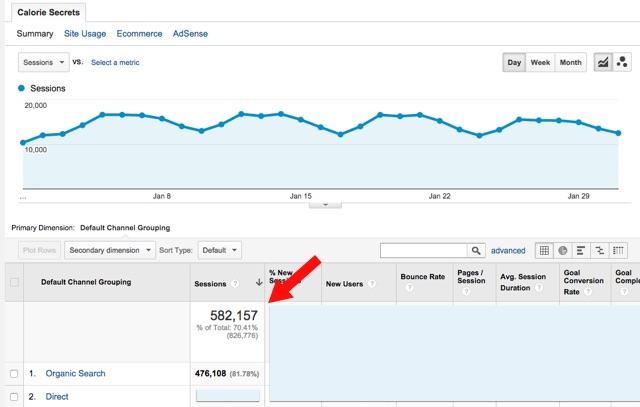
But once it’s fully working, you’ll see real live data:
How Do I See My Blog Posts in Google Analytics?
To find your blog posts, go to Behavior -> Site Content -> All Pages. It looks like this:
If you click on the “advanced” link next to the search box on the top of Google Analytics, you can also filter out your non-blog pages, like the contact page. Make sure to change “include” to “exclude”.


 Hello, Anuwa Blessing Cipher. I'm a 18 year old self-employed Blogger,Webdesigner,SEO Expert.
No comments:
Post a Comment